The Transcript Panel
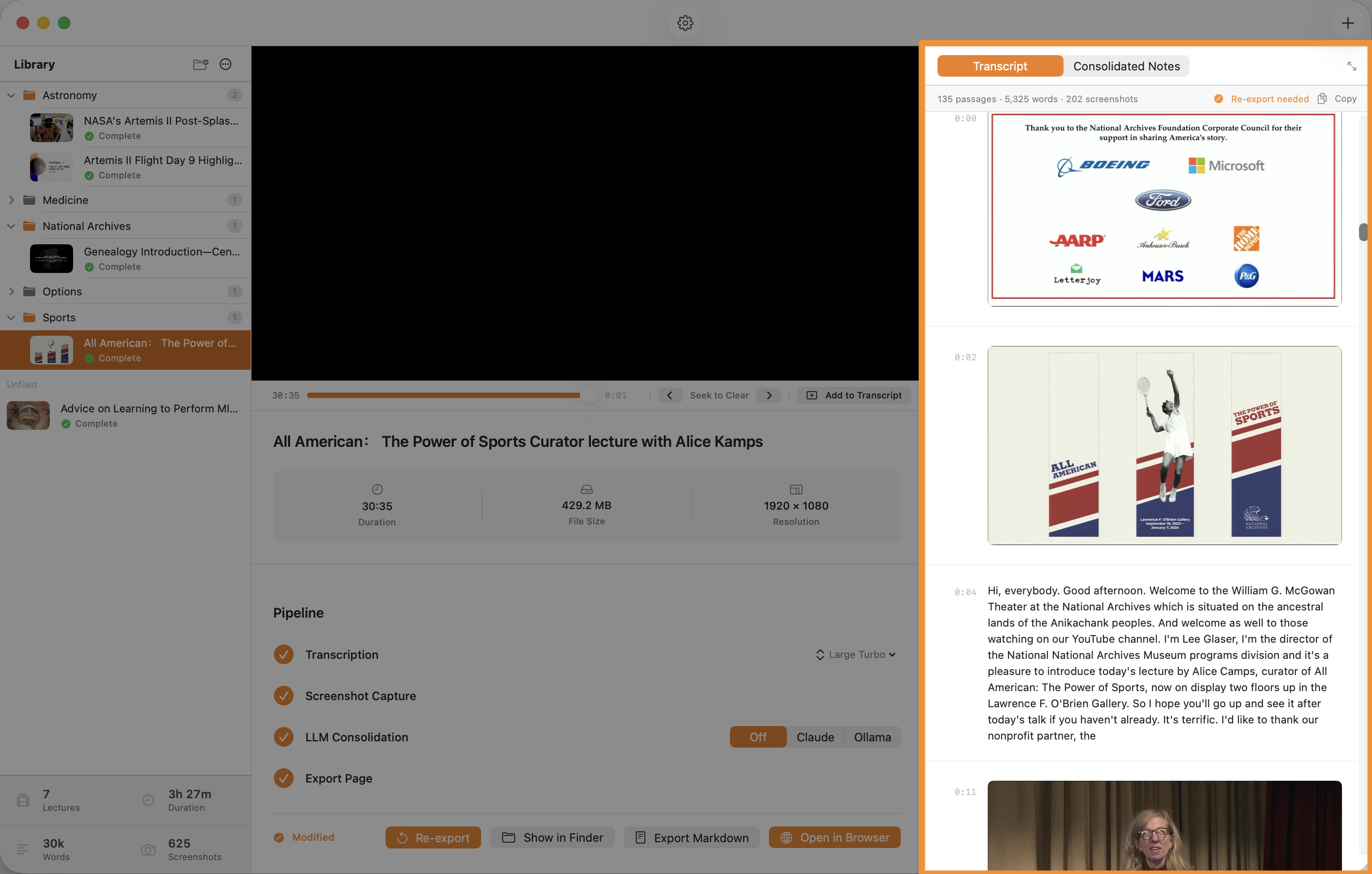
The right-hand panel shows live processing logs during pipeline runs, then switches to the searchable transcript and consolidated notes on completion.
Overview
The Transcript Panel occupies the right column of the lecture detail view. It has three distinct modes depending on the state of the selected lecture:
- Empty / Ready state — Prompts you to click Begin Processing.
- Processing state — Shows a live, timestamped log of pipeline activity. Replaces the transcript content entirely while the pipeline runs.
- Complete state — Shows the full transcript (with embedded screenshots) and, if consolidation was run, a tab to switch to the Consolidated Notes view.
Tab Switching
When a lecture is complete and consolidated notes exist, the top of the transcript panel shows a segmented tab control with two options: Transcript and Consolidated Notes. Click either tab to switch views.
If no consolidated notes exist (consolidation mode is Off), the tab control is hidden and only the transcript is shown.
Expanding to Full View
The transcript panel is intentionally compact so it shares space with the video player. When you want more room — especially for editing consolidated notes or reading a long transcript — click the expand button in the top-right corner of the panel header.
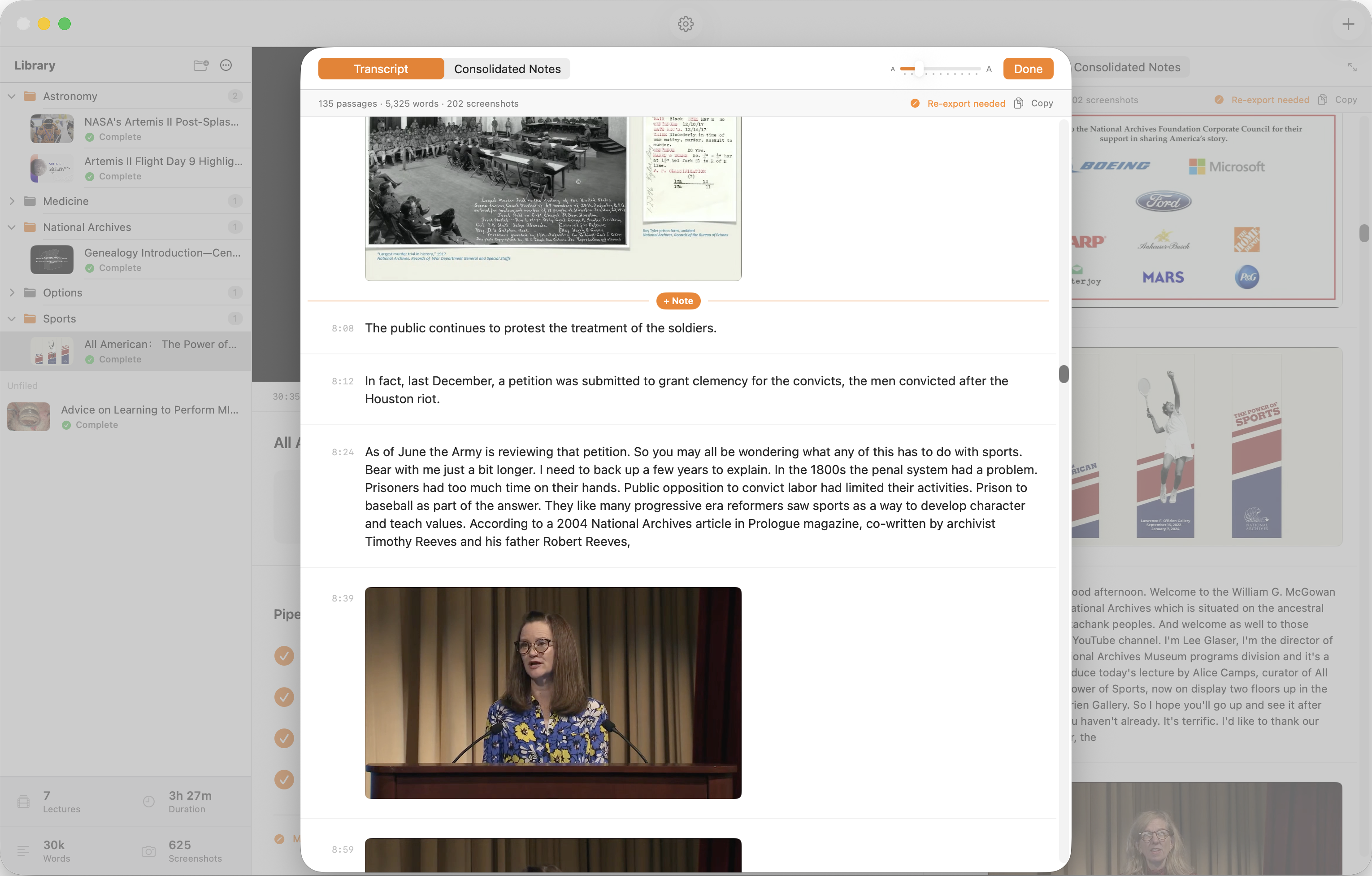
The expand button (⤢, tooltip: "Open in larger view") opens the transcript in a separate, resizable modal window that can be stretched to fill as much of your screen as you need. This window is a full-featured mirror of the inline panel:
- All transcript passages, timestamps, and embedded screenshots scroll in the larger space.
- The Transcript / Consolidated Notes tab control appears at the top if notes exist, with the same tab active when you opened the view.
- Switching to Consolidated Notes and clicking Edit gives you a comfortable Markdown editor with plenty of room — ideal for reviewing and refining the AI-generated notes.
- A font-size slider in the header lets you adjust the passage text from 12 pt to 22 pt without affecting any other part of the app.
- Every annotation you make in the expanded view — highlights, margin notes, inline notes, text edits — is written to the same model the inline panel reads. Nothing is lost when you close the window.
Close the expanded view by clicking Done in the header or pressing ⎋ (Escape). The inline panel reflects any changes immediately.
The Transcript View
The transcript is displayed as a scrollable timeline. Each element in the timeline is one of three types:
Transcript Passages
Each passage is a group of transcript segments combined by sentence boundaries and pause gaps. The layout is two-column:
- Left column (timestamp chip) — The start time of the passage in
H:MM:SSformat, in a monospace font. Clicking a timestamp seeks the video player to that moment. - Right column (passage text) — The spoken text. The currently playing passage (when the in-app audio player is active) is highlighted with a subtle background tint.
Screenshot Thumbnails
Screenshots captured during processing appear inline in the timeline at their capture timestamp, between the passages that surround that moment. They display as full-width cards within the panel. Hovering over a screenshot reveals controls: a Make Keyframe button (sets it as the library thumbnail) and a trash icon to delete it.
Inline Notes
User-created inline notes appear as card elements in the timeline between the passages they were inserted after. See Annotations for how to create them.
Copying the Transcript
The stats bar at the top of the transcript panel shows the word count, screenshot count, and total duration. It also contains a Copy button. Clicking this copies the full transcript text (all passages, in order, without timestamps) to the clipboard as plain text. This is useful for pasting the transcript into another application or document.
The Consolidated Notes View — Read Mode
Click the Consolidated Notes tab to switch to the notes view. The consolidated Markdown is rendered as formatted text — headings, bullet points, and paragraphs. All text in this view is selectable, which means you can add the same highlights, margin notes, and inline notes available in the transcript view.
The notes are stored separately from the Markdown source. Annotations are keyed to the rendered content, not the raw Markdown.
The Consolidated Notes View — Edit Mode
Click the Edit toggle button in the header of the Consolidated Notes view to switch from the formatted render to a plain-text Markdown editor. In Edit mode:
- The full Markdown source is shown in a scrollable text editor.
- Changes are auto-saved continuously — there is no explicit Save button.
- A "Modified" badge appears next to the tab name when there are unsaved changes (changes that haven't yet been reflected in the HTML export).
Switch back to Read mode by clicking the Done or Preview button. After editing, a "Re-export needed" badge appears on the lecture — click Reexport to regenerate the HTML with your edited notes.
Processing Log
During an active pipeline run, the transcript panel switches to a Live Log view. Each log message is timestamped and colour-coded:
- White — Informational messages (pipeline steps starting, progress milestones)
- Amber — Warnings (e.g., a frame was skipped due to blur)
- Red — Errors (if a step fails)
The log auto-scrolls to the latest message. You can scroll up manually to read earlier messages without interrupting the auto-scroll. The log is cleared when you navigate away from the lecture or when a new pipeline run starts.