The Processing Pipeline
Four steps that turn a raw video into a polished, interactive study document. Steps 1 and 2 run in parallel; steps 3 and 4 run sequentially after.
Overview
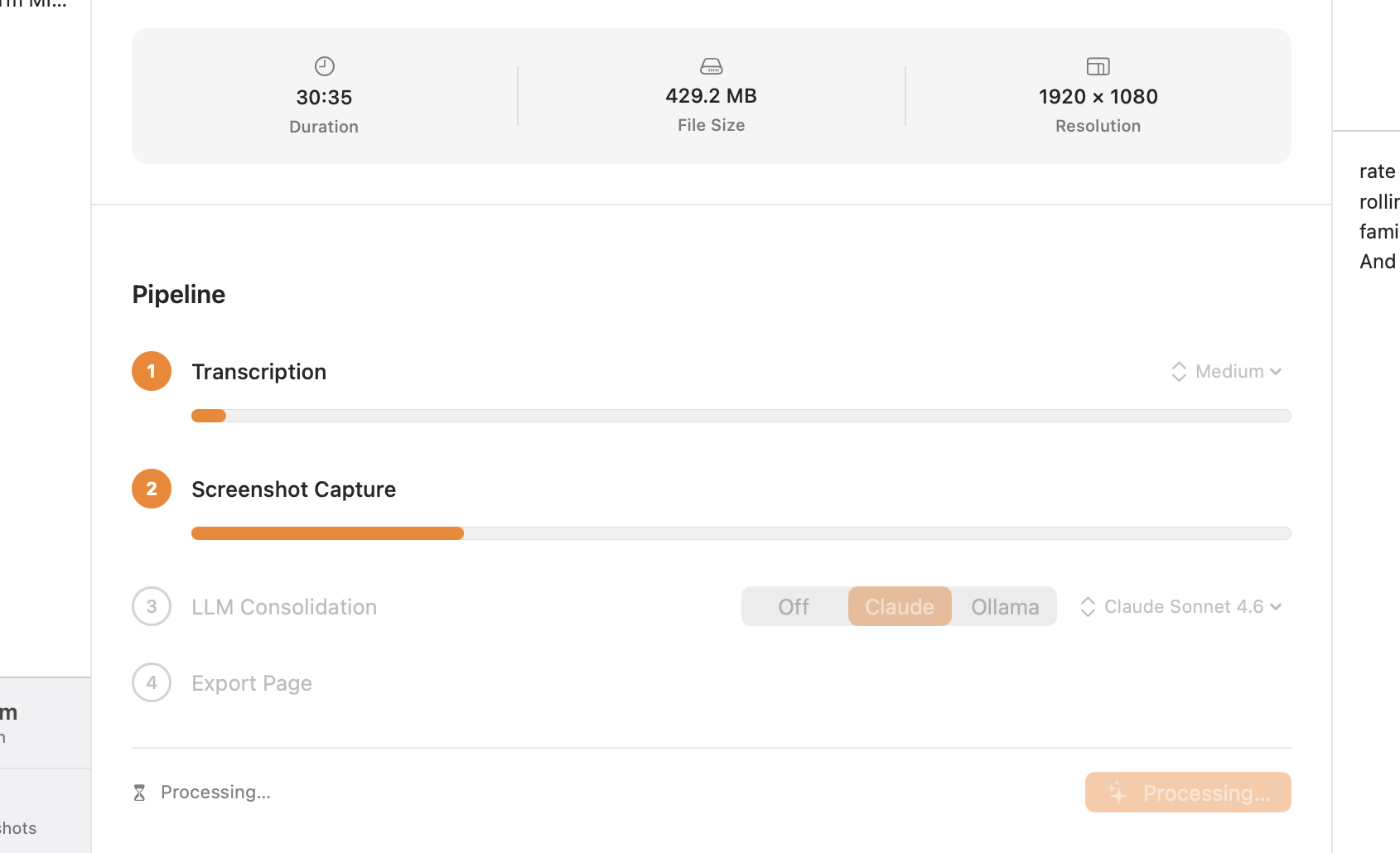
When you click Begin Processing, Harvestry runs four stages:
- Transcription — WhisperKit transcribes the audio track using the Apple Neural Engine, producing word-level timestamped segments.
- Screenshot Capture — An on-device scan uses Apple Vision text detection, accurate OCR, and perceptual hashing to find every distinct slide, remove near-duplicates, and capture the sharpest frame of each at full resolution.
- LLM Consolidation — Optionally, the transcript is sent to Claude, ChatGPT, or a local Ollama model to generate structured study notes. Can be skipped.
- Export Page — Everything is assembled into a self-contained HTML folder:
index.html,styles.css,audio.m4a, and animages/directory.
Steps 1 and 2 run in parallel because they use different hardware — the Apple Neural Engine for transcription and the GPU/Video Toolbox for frame extraction. On most lectures this means you wait only as long as the slower of the two, not the sum of both.
Starting the Pipeline
Select a lecture in the sidebar that has Ready or Complete status. In the detail view, click the green Begin Processing button in the toolbar. The button disappears once processing starts and is replaced by a cancel button.
You can navigate away from the lecture while it processes — the pipeline continues in the background. The sidebar will update the status badge as each step completes.
Step 1: Transcription
Harvestry uses WhisperKit, an on-device implementation of OpenAI's Whisper model, to transcribe the audio track. Key characteristics:
- Runs entirely on the Apple Neural Engine — not the CPU, not a remote server.
- Produces word-level timestamps, enabling the per-word audio highlight sync in the exported HTML.
- Multilingual. The spoken language is auto-detected by default, or you can name it yourself — detection samples only the opening of the audio, so an intro in another language can mislead it. Coverage is wide, but accuracy varies by language; see Transcription.
- Can translate into English instead of transcribing in the spoken language (Harvestry Pro). Translation is one-directional: Whisper targets English only.
- Whisper works best with content primarily in one language.
- No audio data leaves your Mac — translation included.
Five model sizes are available — Tiny, Base, Small, Medium, and Large Turbo — ranging from ~75 MB to ~800 MB. Larger models are more accurate but slower and require more memory. See Transcription for the full comparison table and download instructions.
Step 2: Screenshot Capture
Screenshot capture runs in two phases:
- Scan phase — The video is decoded at 640×360 / 2 fps. Each frame is assessed by a coverage-based change metric, Apple Vision text detection, and a de-duplication check that decides whether the moment is a genuinely new slide. Slides are de-duplicated by their OCR'd text; talking-head shots are de-duplicated by a perceptual fingerprint, so the recurring shot of the speaker collapses to a single representative. This produces a list of candidate timestamps.
- Capture phase — For each candidate, a short forward window is scored for sharpness and the fully-settled, sharpest frame is decoded at full resolution (up to 2560×1440). Near-black fade frames are discarded.
Both phases use the GPU and video decoder via Apple's AVFoundation framework and run in parallel with transcription on the Neural Engine — and every analysis stage (Vision, OCR, hashing) runs entirely on-device.
See Screenshot Capture for details on slide selection, sharpness detection, the max interval setting, and manual frame capture.
Step 3: LLM Consolidation
Once the transcript is available, you can optionally send it to a language model to generate structured study notes. The mode selector on the Step 3 row has four options:
- Off — No LLM. The pipeline skips straight to export. This is the default.
- Claude — Sends the transcript to the Anthropic API. Requires an API key configured in Settings. Your transcript text leaves your Mac over HTTPS.
- ChatGPT — Sends the transcript to the OpenAI API. Requires an API key configured in Settings. Your transcript text leaves your Mac over HTTPS.
- Ollama — Sends the transcript to a locally running Ollama instance. Fully on-device. Requires Ollama to be installed and running with a compatible model.
See LLM Consolidation for setup instructions and prompt customization.
Step 4: Export
The final step assembles all outputs into a folder at your configured export location:
index.html— The study document.styles.css— Stylesheet.audio.m4a— Audio track extracted from the video viaAVAssetExportSession.images/— JPEG screenshots, each named{index}_{timestamp}.jpg.
See HTML Export for the full page layout, audio sync, and annotation export details.
Monitoring Progress
During processing, the detail view shows four step rows with progress bars. The Transcript Panel on the right switches to a live log view, showing timestamped messages as the pipeline runs — useful for understanding what's happening or diagnosing an issue.
Progress fractions are approximate; they reflect how much of the video has been processed, not wall-clock time remaining.
After Completion
When all four steps complete:
- All step rows turn green with checkmarks.
- The sidebar status badge changes to a green Complete indicator.
- The toolbar shows two new buttons: Open in Browser and Show in Finder.
- The transcript panel switches from the log view to the transcript content view.
Re-processing Options
After a lecture is complete, you have several options to update or redo work:
| Action | What it does | Keeps screenshots? | Keeps transcript? |
|---|---|---|---|
| Rebuild export | Regenerates the HTML folder from the existing transcript, screenshots, and notes. Use after adding annotations or changing export settings. | Yes | Yes |
| Re-transcribe | Runs transcription again with the current model, language, and Transcribe/Translate setting, then re-exports. Existing consolidated notes are carried over unchanged. | Yes | Replaced |
| Run consolidation | Runs only Step 3 with the current provider, model, and notes language, then re-exports. Needs a transcript and consolidation turned on. | Yes | Yes |
| Reprocess everything | Runs all four pipeline steps on the already-downloaded file. It never re-downloads from the source URL. Use when you want a completely fresh result. | Replaced | Replaced |
All four actions are in the Reprocess menu in the action row at the bottom of the lecture detail view, next to Show in Finder and Open in Browser. The menu appears whenever a lecture is complete and is always available, whether or not anything has changed. An item is disabled only when it can't run, for example when the source video is missing, the selected Whisper model isn't downloaded, or consolidation is turned off. When your current settings differ from the ones last used, the matching item says so, e.g. "(settings changed)".