Settings
A complete reference for every option in the Harvestry Settings panel.
Opening Settings
Open the Settings panel by clicking the gear icon (⚙) in the top-right corner of the main window toolbar, or use the menu bar: Harvestry → Settings (⌘ ,).
Settings is organized into five tabs: Transcription, Screenshots, Export Location, Video Downloader, and Consolidation.
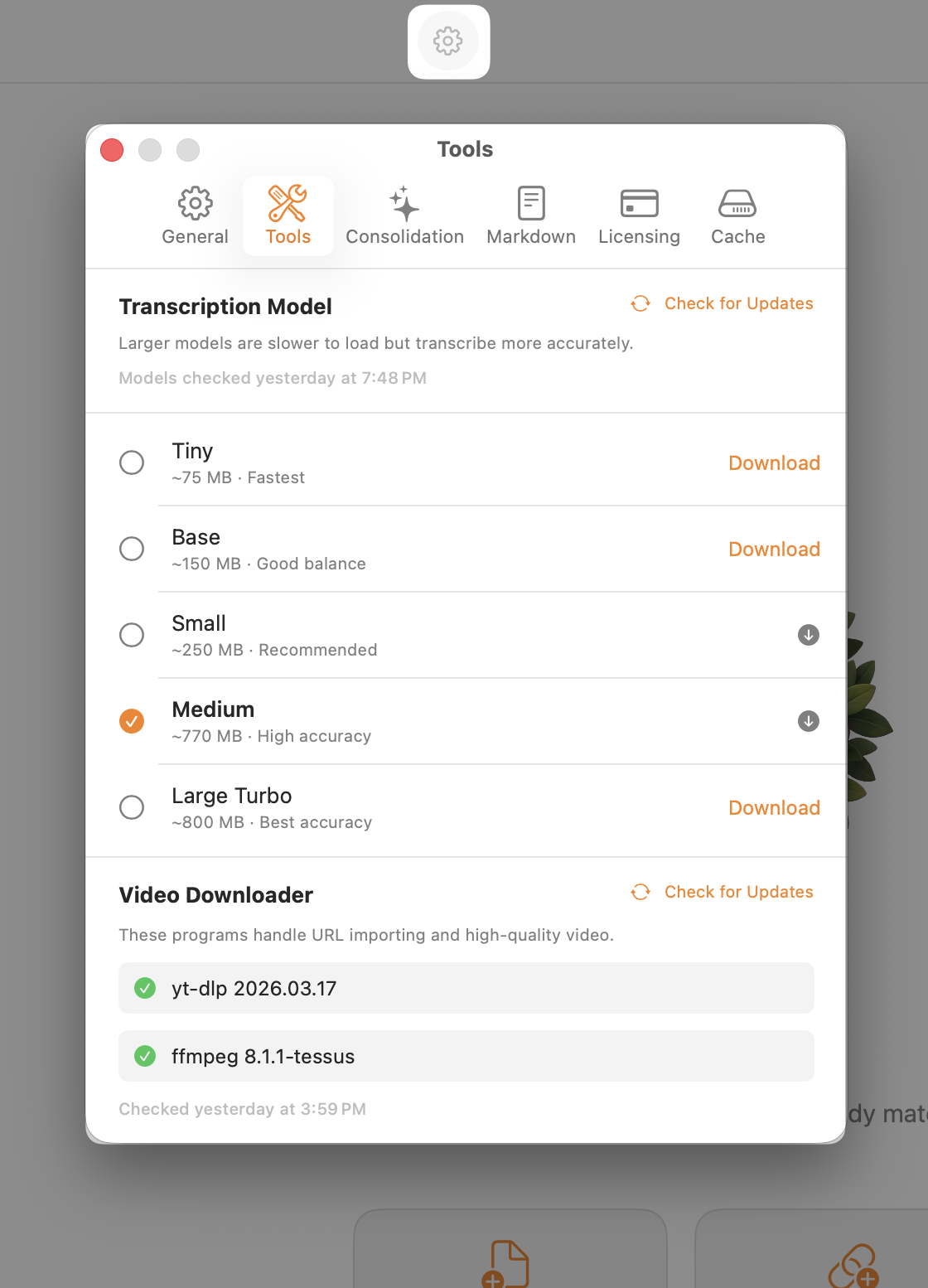
Transcription Tab
Configure the Whisper speech recognition models used for transcription.
Whisper Models
Five model sizes are listed: Tiny (~75 MB), Base (~150 MB), Small (~250 MB), Medium (~770 MB), and Large Turbo (~800 MB). Each row shows the model's download status:
- Not Downloaded — A Download button is shown. Click it to begin downloading from Hugging Face.
- Downloading — A progress bar replaces the button. Downloads can be cancelled.
- Ready — A green checkmark. The model can be used for transcription.
- Update Available — An update badge and an Update button. The local model weights are outdated.
Default Model
One downloaded model is marked as the default. This model is pre-selected when you start processing a new lecture. Click Set as Default on any downloaded model row to change the default. Individual lectures can override this selection.
Update Check
Harvestry checks for model updates automatically every 24 hours by comparing the local snapshot SHA against the Hugging Face Hub HEAD. Click Check Now to trigger an immediate check.
Screenshots Tab
Configure how Harvestry captures screenshots during processing.
Max Interval Slider
The Max Interval slider controls the maximum time that can pass between consecutive screenshots, regardless of scene activity.
- Range: 15 seconds – 120 seconds
- Default: 30 seconds
- Lower values (15–20 s) produce more screenshots, useful for fast-paced content like code walkthroughs.
- Higher values (60–120 s) produce fewer screenshots, useful for slow presentations where visual changes are infrequent.
This setting applies to all future processing runs. Existing processed lectures are not affected; they must be reprocessed to use the new interval.
Export Location Tab
Configure where Harvestry saves exported HTML folders.
Export Folder
The current export root folder is shown with its full path. Click Choose Folder to open a folder picker and select a new location. The change takes effect immediately for all future exports.
Reveal in Finder
Click Show in Finder to open the current export root folder in Finder. Useful for quickly navigating to your exported study documents.
Reset to Default
Click Reset to Default to return the export location to ~/HarvestryLibrary/. Existing exports at the old location are not moved.
Video Downloader Tab
Manage the yt-dlp and ffmpeg binaries used for URL download and video format conversion.
yt-dlp Status
The yt-dlp row shows the currently installed version and one of two states:
- Up to date — Green checkmark. The installed version matches the latest release on GitHub.
- Update available — Gray arrow. A newer release is available.
ffmpeg Status
The ffmpeg row shows the installed version from evermeet.cx and the same two states as yt-dlp.
Check for Updates
One Check for Updates button refreshes both yt-dlp and ffmpeg simultaneously. The check queries:
- yt-dlp: GitHub releases API at
yt-dlp/yt-dlp - ffmpeg:
https://evermeet.cx/ffmpeg/info/ffmpeg/release
If updates are found, an Update button appears next to each row. Updates install to ~/Library/Application Support/io.archetyp.Harvestry/ without requiring your password.
Consolidation Tab
Configure API keys, Ollama endpoint, and the system prompt used for LLM consolidation.
Claude API Key
Paste your Anthropic API key into the API Key field. The key is stored in the macOS Keychain. It is never stored in plain text in files, preferences, or logs. The field shows only the last four characters after saving for confirmation.
Click Remove to delete the key from the Keychain. This disables Claude consolidation for all lectures.
Ollama Endpoint
The default Ollama endpoint is http://localhost:11434. Change this field if you run Ollama on a different port or a remote machine. Harvestry appends /api/tags and /api/generate to this base URL.
System Prompt
The system prompt is sent to the LLM before the transcript. It instructs the model on how to structure the output. The default prompt requests structured Markdown with topic headings, bullet points, and a Key Takeaways section.
Edit the prompt directly in the text editor. Changes are saved immediately. Click Reset to Default to restore the original prompt.
The same system prompt is used for both Claude and Ollama mode. Per-lecture prompt overrides are not currently supported.