Getting Started
Install Harvestry, import your first video, and produce a study document in under five minutes.
Requirements
Before installing, confirm your Mac meets these minimum specifications:
- macOS 15 Sequoia or later — Harvestry uses APIs introduced in macOS 15.
- Apple Silicon (M1 or later) — WhisperKit transcription runs on the Apple Neural Engine, which is only available on Apple Silicon Macs. Intel Macs are not supported.
- 4 GB free disk space minimum — The Small Whisper model requires roughly 250 MB; the Large Turbo model roughly 800 MB. Allow additional space for video files and exports.
- Internet connection for URL import — Importing from YouTube, Vimeo, or other sites requires network access. Local file import works entirely offline.
- Internet connection for hosted consolidation — If you enable Claude or ChatGPT consolidation, your transcript is sent to Anthropic or OpenAI over HTTPS. Ollama consolidation and everything else runs locally.
Installation
Click Download for macOS on the Harvestry website. Save the Harvestry.dmg file to your Downloads folder.
Double-click Harvestry.dmg to mount it. In the window that opens, drag the Harvestry icon onto the Applications folder alias.
Open Harvestry from your Applications folder or Spotlight. On first launch, macOS may show a Gatekeeper dialog — click Open to proceed. Harvestry automatically strips the quarantine attribute from its bundled tools so they work immediately without requiring your password.
When the app opens, go to Settings → Transcription and download at least the Small model before you process your first video. The download is about 250 MB and takes a minute or so on a fast connection.
Your First Import & Processing Run
Once the Whisper model has downloaded, importing and processing happen in one continuous flow — the pipeline starts as soon as you confirm the import.
Click the + button at the top right of the window's toolbar, or use the menu bar: File → New Transcription… (⌘N). The folder-with-a-plus icon at the top of the sidebar creates a folder, not a lecture.
The Import sheet has two tabs. Use Video File to pick a .mp4, .mov, or .m4v from your Mac, or switch to the URL tab and paste a YouTube, Vimeo, or other supported link.
Click Import. Harvestry registers the lecture and kicks off the pipeline right away. Transcription and screenshot capture run in parallel: the Apple Neural Engine handles the audio while the GPU works through the video frames simultaneously.
Progress bars and live log messages appear in the detail view as each stage completes. For a one-hour lecture, expect roughly 2–5 minutes on an M1 Mac with the Small Whisper model.
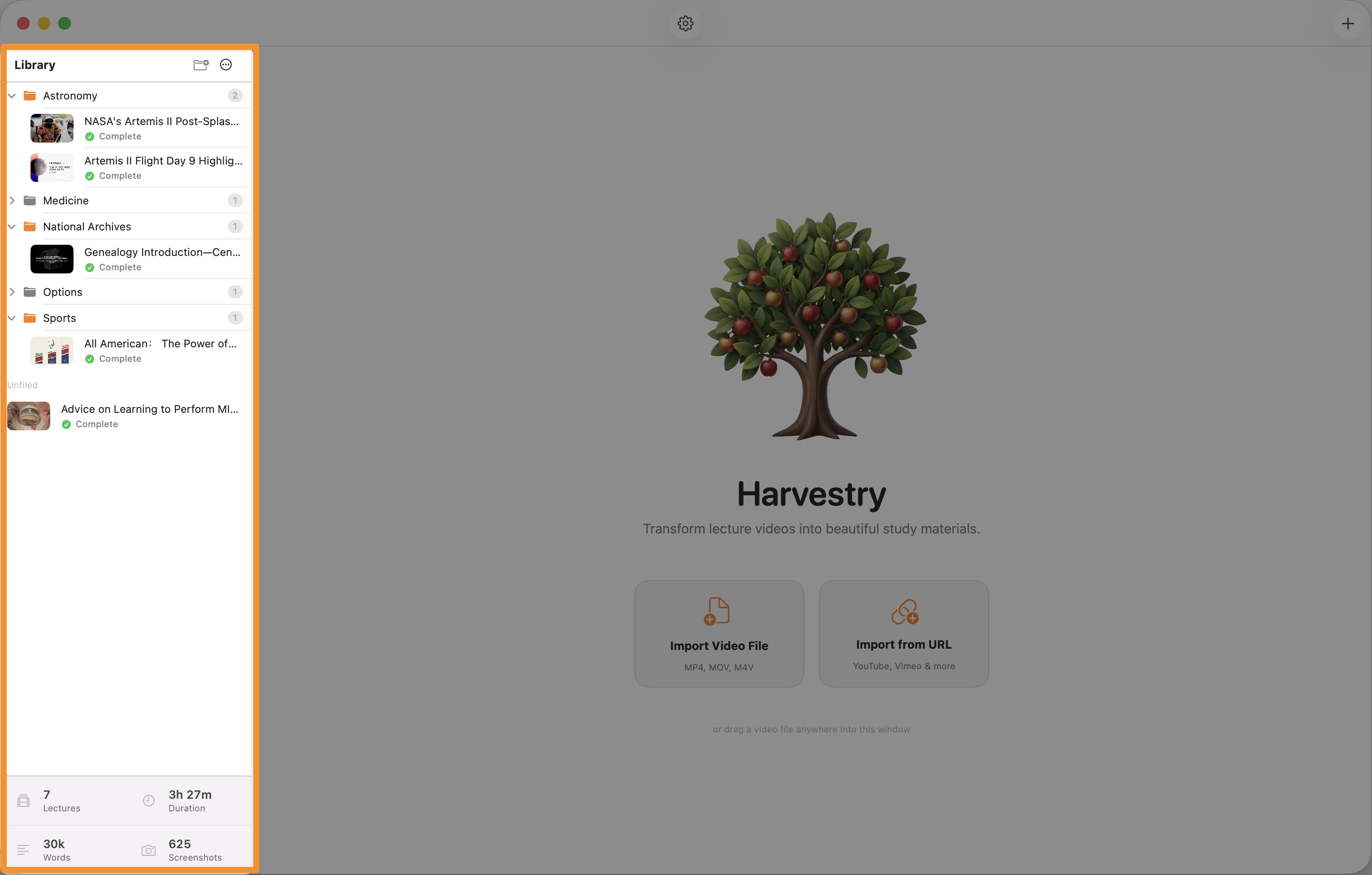
When all pipeline steps finish, the status badge changes to Complete and the lecture entry is added to the sidebar — click Open in Browser to view your study document. Freshly processed lectures land in the Unfiled section at the bottom of the sidebar, so that's always where you'll find something you just ran. You can create folders to organise your library and drag lectures between them freely; right-click the sidebar to add a new folder, or drag a lecture onto an existing one to file it.
What You Get
Every processed lecture produces a folder inside your export location. By default this is iCloud Drive → Harvestry → exports/YYYY-MM-DD Title/, synced automatically across your Macs. If iCloud Drive isn't available, Harvestry uses ~/HarvestryLibrary/ instead. To keep exports on this Mac only, turn off Save exports to iCloud Drive in Settings → General → Export Location. That setting affects exports only; your library itself syncs through iCloud whenever you're signed in (see iCloud Drive vs. local storage).
The folder contains:
- index.html — The study document. Open this in any browser.
- styles.css — The stylesheet, bundled alongside the HTML.
- audio.m4a — Audio extracted from the video, used by the in-page audio player.
- images/ — JPEG screenshots captured at key moments during the lecture.
- notes.html — Present only if you ran LLM consolidation. A second self-contained document with polished, structured study notes generated from your transcript.
The transcript document (index.html) includes:
- The full transcript, broken into readable passages with timestamp labels.
- Screenshots embedded in the timeline at the moments they were captured.
- An audio player with per-word highlight sync — click any word to seek the audio to that moment.
- A font-size slider and dark-mode toggle, both persisted across browser sessions.
If you ran LLM consolidation, notes.html contains an AI-generated study guide — headings, summaries, key concepts, and tables — derived from the full transcript. Both documents are fully self-contained and work offline.