Annotations: Highlights, Margin Notes & Inline Notes
Mark up your transcript and consolidated notes with color-coded highlights, margin commentary, and freeform inline notes — all of which survive into the exported HTML.
Overview
Both the Transcript view and the Consolidated Notes view support the same three annotation tools:
- Highlights — Color-coded background on selected text. Four colors available.
- Margin Notes — A short text note anchored to a selected phrase, displayed in the margin of the exported HTML page.
- Inline Notes — Freeform note cards inserted between content blocks in the timeline.
All annotations are stored per-lecture and survive export. A "Modified, re-export needed" badge appears whenever annotations are added, edited, or deleted — click Reexport to regenerate the HTML with your latest annotations.
Highlighting Text
Text highlights work in both the Transcript and Consolidated Notes views.
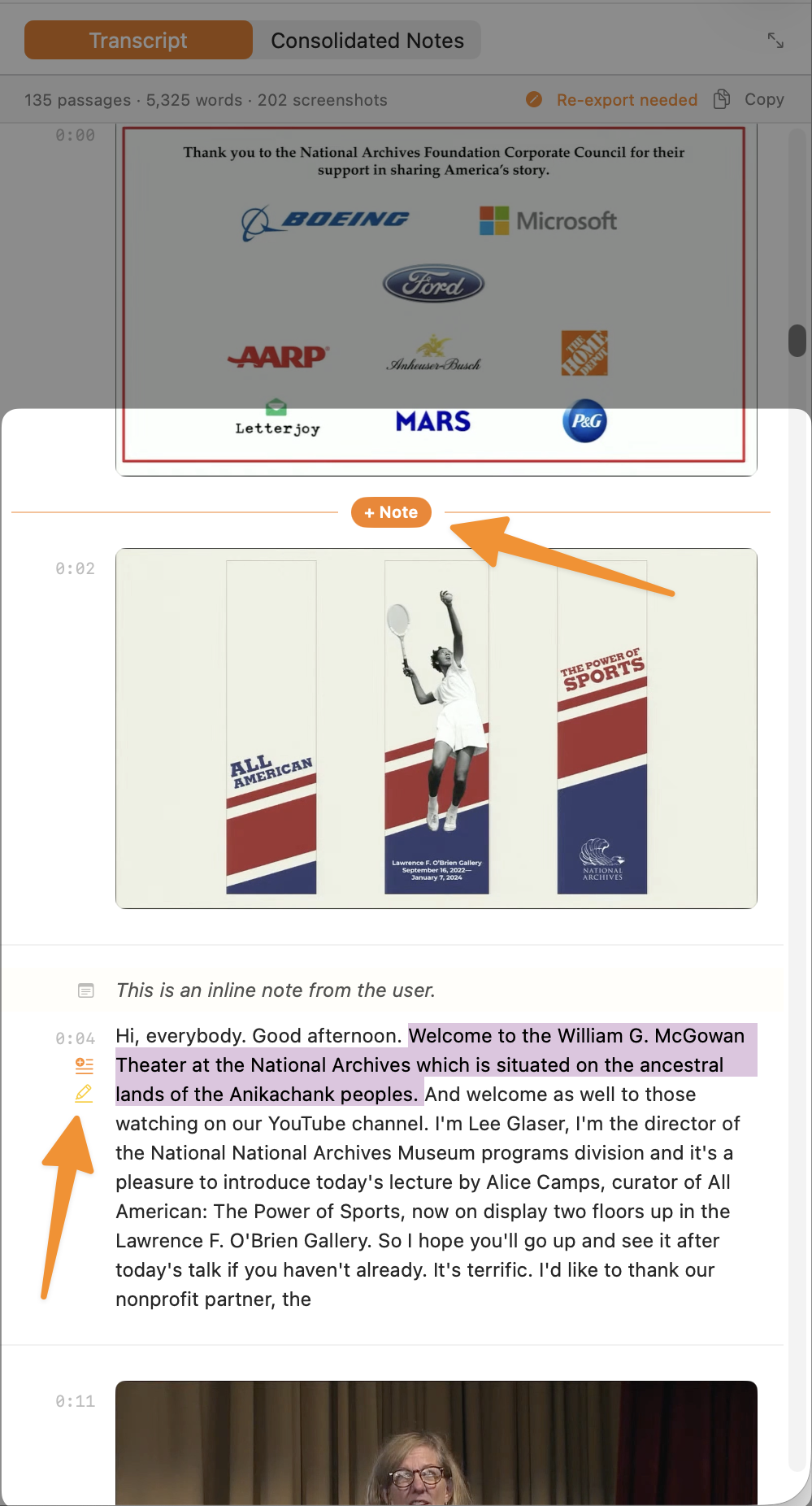
Click and drag over the text you want to highlight in a passage. A small floating toolbar appears near the selection — shown by the second arrow in the screenshot above — with two buttons: Add Margin Note (underlines the phrase and anchors a note to it) and Highlight (applies a color background).
Click the Highlight button in the toolbar that appears. A color picker shows four options:
The selected text receives a colored background. A chip showing the highlighted phrase appears below the passage. The lecture receives a "Modified" badge.
In the exported HTML, highlights render as <mark data-hl> elements with corresponding color classes. They are baked directly into the HTML file by the app — visible to anyone who opens the file, in any browser, without any interaction required.
Margin Notes
Margin notes attach a text annotation to a specific anchor phrase in the transcript or consolidated notes. In the exported HTML, they appear as floating aside elements in the page gutter.
Select a word or phrase that the note should be anchored to.
In the toolbar that appears, click Add Margin Note. A popover opens with two fields: the anchor phrase (pre-filled) and a text area for the note body.
Select whether the note appears on the left or right margin in the exported HTML. Write your note text, then press ⌘ Return or click Save.
Margin notes appear as small chips in the transcript panel below the anchored passage. In the HTML export, they render as floating sidebar asides positioned in the document gutter at the same vertical position as their anchor phrase.
Inline Notes
Inline notes are freeform card elements inserted between content blocks in the timeline — between passages, between screenshots, or between any two adjacent elements. They're useful for personal commentary that's not anchored to specific text.
Move your cursor over the divider line between two passages or between a passage and a screenshot. A + Note button appears in the gap (shown in orange by the first arrow in the screenshot above — the color matches your macOS accent color).
A card appears in the timeline with an editable text field active and focused.
Type your note. Press ⌘ Return to save. The card persists in the timeline as a user-note element with a distinct style. Press Escape to discard.
In the exported HTML, inline notes render as card elements between content blocks, visually distinct from the transcript passages.
Editing and Deleting Annotations
To edit or delete any annotation:
- Highlight — Hover the highlight chip below the passage → click the pencil icon to change the color, or the trash icon to remove it.
- Margin note — Hover the margin note chip → click the pencil icon to re-open the popover, or the trash icon to delete.
- Inline note — Hover the note card → click the pencil icon to switch to edit mode, or the trash icon to remove it.
After any edit, the lecture receives a "Modified" badge. Reexport to update the HTML.
Annotations in the HTML Export
| Annotation Type | HTML Representation |
|---|---|
| Highlight (Yellow) | <mark data-hl="yellow">text</mark> — colored background, baked into the HTML by the app |
| Highlight (Green / Blue / Pink) | Same pattern with data-hl="green", "blue", "pink" |
| Margin Note | Floating <aside class="margin-note margin-note--left/right"> in the page gutter, vertically aligned with the anchor phrase |
| Inline Note | <div class="user-note"> element between content blocks, styled as a callout card |
Notes in Consolidated Notes
The Consolidated Notes view supports the same three annotation tools with identical interaction. Annotations on consolidated notes are stored separately from annotations on the verbatim transcript — they don't interfere with each other. In the exported HTML, consolidated notes appear in a separate tab, and their annotations are scoped to that tab.